Note
Go to the end to download the full example code.
Cartesian histograms
Cartesian histograms can be generated using the pygmt.Figure.histogram method.
In this tutorial, different histogram related aspects are addressed:
Choosing the bins with
seriesComparing histogram styles
Showing counts and frequency percent
Adding annotations to the bars
Showing cumulative values
Using color and pattern as fill for the bars
Adding distribution curves
Using overlaid, stacked, and grouped bars
Using vertical and horizontal bars
Import the required packages
Generate random data from a normal distribution:
rng = np.random.default_rng(seed=100)

# Mean of distribution
mean = 100
# Standard deviation of distribution
stddev = 20

# Create two data sets
data01 = rng.normal(loc=mean, scale=stddev, size=42)
data02 = rng.normal(loc=mean, scale=stddev * 2, size=42)
Choosing the bins
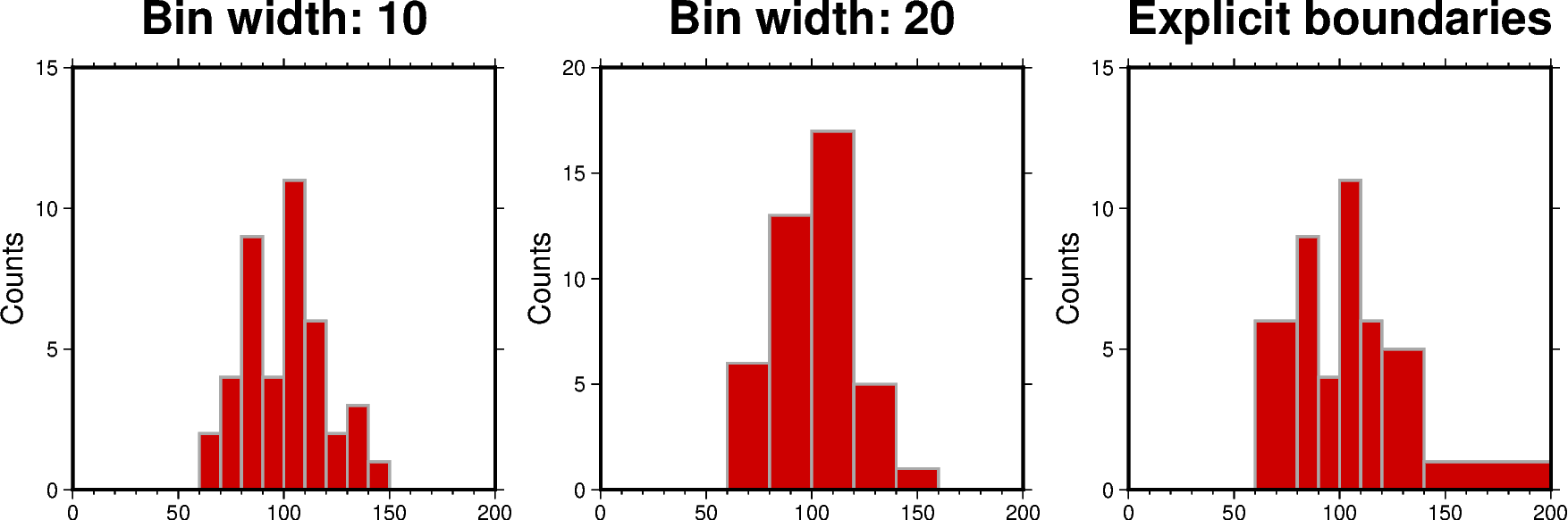
The series parameter controls how the data are grouped into bins. Changing
the bin width can reveal or hide features in the same data set, so choosing the
bins is an important first step when creating a histogram.
A single number sets the bin width. The binning range is determined from the
data or from region. For example, series=10 gives bins that are 10 units
wide. Use region to set the displayed range as
[xmin, xmax, ymin, ymax]. Setting both y-limits to the same value lets GMT
determine them automatically.
fig = pygmt.Figure()

fig.histogram(
    data=data01,
    series=10,
    region=[0, 200, 0, 0],
    projection="X6c",
    frame=Frame(
        axes="WSne",
        title="Bin width: 10",
        xaxis=Axis(annot=50, tick=10),
        yaxis=Axis(annot=True, label="Counts"),
    ),
    fill="red3",
    pen="1p,darkgray",
)
A list or tuple of three numbers specifies the minimum, maximum, and increment
of the binning. Here, series=[0, 200, 20] uses bins from 0 to 200 with a width
of 20. This is equivalent to the GMT-style string series="0/200/20".
region controls the plot limits, while series controls the bin boundaries.
fig.shift_origin(xshift="w+1.5c")

fig.histogram(
    data=data01,
    series=[0, 200, 20],
    region=[0, 200, 0, 0],
    projection="X6c",
    frame=Frame(
        axes="WSne",
        title="Bin width: 20",
        xaxis=Axis(annot=50, tick=10),
        yaxis=Axis(annot=True, label="Counts"),
    ),
    fill="red3",
    pen="1p,darkgray",
)
To set the bin boundaries explicitly, pass a sequence of boundary values. These bins can have different widths. Here, the boundaries are closer together near the center of the distribution. The bar heights still show counts, so a wider bin can contain more observations even where the data are less concentrated.
A list or tuple with exactly three elements is always interpreted as
[minimum, maximum, increment], rather than three boundaries. To give exactly
three boundaries, use a NumPy array, e.g., series=np.array([0, 100, 200]).
fig.shift_origin(xshift="w+1.5c")

fig.histogram(
    data=data01,
    series=np.array([0, 60, 80, 90, 100, 110, 120, 140, 200]),
    region=[0, 200, 0, 0],
    projection="X6c",
    frame=Frame(
        axes="WSne",
        title="Explicit boundaries",
        xaxis=Axis(annot=50, tick=10),
        yaxis=Axis(annot=True, label="Counts"),
    ),
    fill="red3",
    pen="1p,darkgray",
)

fig.show()
Histogram styles
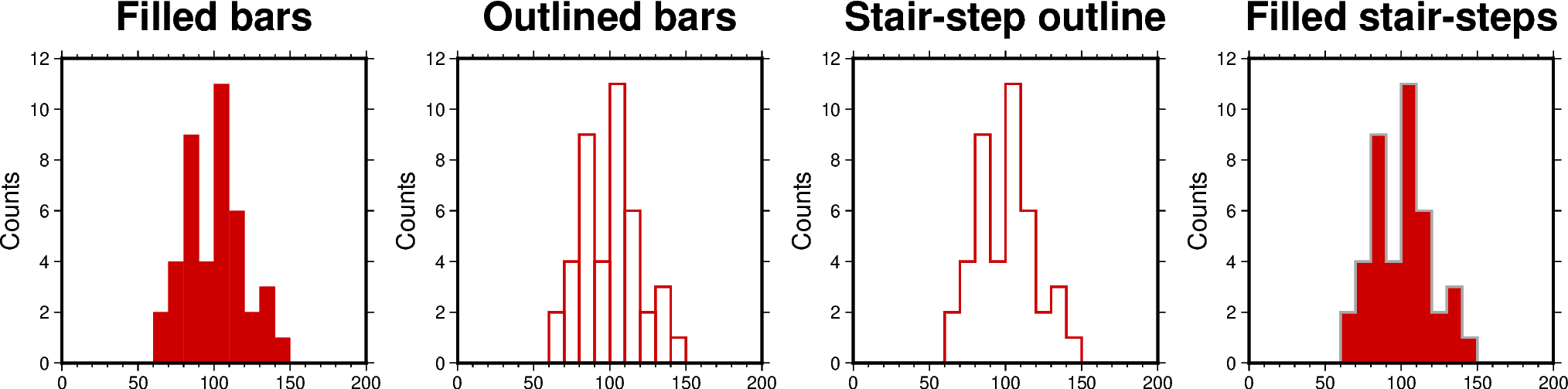
Combine fill, pen, and stairs to change the appearance of a histogram
without changing its bins or counts. fill sets the color or pattern inside
the bars, and pen sets the width, color, and style of their outlines.
With stairs=True, only the outer outline is drawn, without internal bars.
The four plots below use the same data, bins, and axis limits for comparison.
fig = pygmt.Figure()

# Filled bars
fig.histogram(
    data=data01,
    series=10,
    region=[0, 200, 0, 12],
    projection="X5c",
    frame=Frame(
        axes="WSne",
        title="Filled bars",
        xaxis=Axis(annot=50, tick=10),
        yaxis=Axis(annot=2, label="Counts"),
    ),
    fill="red3",
)

fig.shift_origin(xshift="w+1.5c")

# Outlined bars
fig.histogram(
    data=data01,
    series=10,
    region=[0, 200, 0, 12],
    projection="X5c",
    frame=Frame(
        axes="WSne",
        title="Outlined bars",
        xaxis=Axis(annot=50, tick=10),
        yaxis=Axis(annot=2, label="Counts"),
    ),
    pen="1p,red3",
)

fig.shift_origin(xshift="w+1.5c")

# Stair-step outline
fig.histogram(
    data=data01,
    series=10,
    region=[0, 200, 0, 12],
    projection="X5c",
    frame=Frame(
        axes="WSne",
        title="Stair-step outline",
        xaxis=Axis(annot=50, tick=10),
        yaxis=Axis(annot=2, label="Counts"),
    ),
    pen="1p,red3",
    stairs=True,
)

fig.shift_origin(xshift="w+1.5c")

# Filled stair-steps
fig.histogram(
    data=data01,
    series=10,
    region=[0, 200, 0, 12],
    projection="X5c",
    frame=Frame(
        axes="WSne",
        title="Filled stair-steps",
        xaxis=Axis(annot=50, tick=10),
        yaxis=Axis(annot=2, label="Counts"),
    ),
    fill="red3",
    pen="1p,darkgray",
    stairs=True,
)

fig.show()
Counts and frequency percent
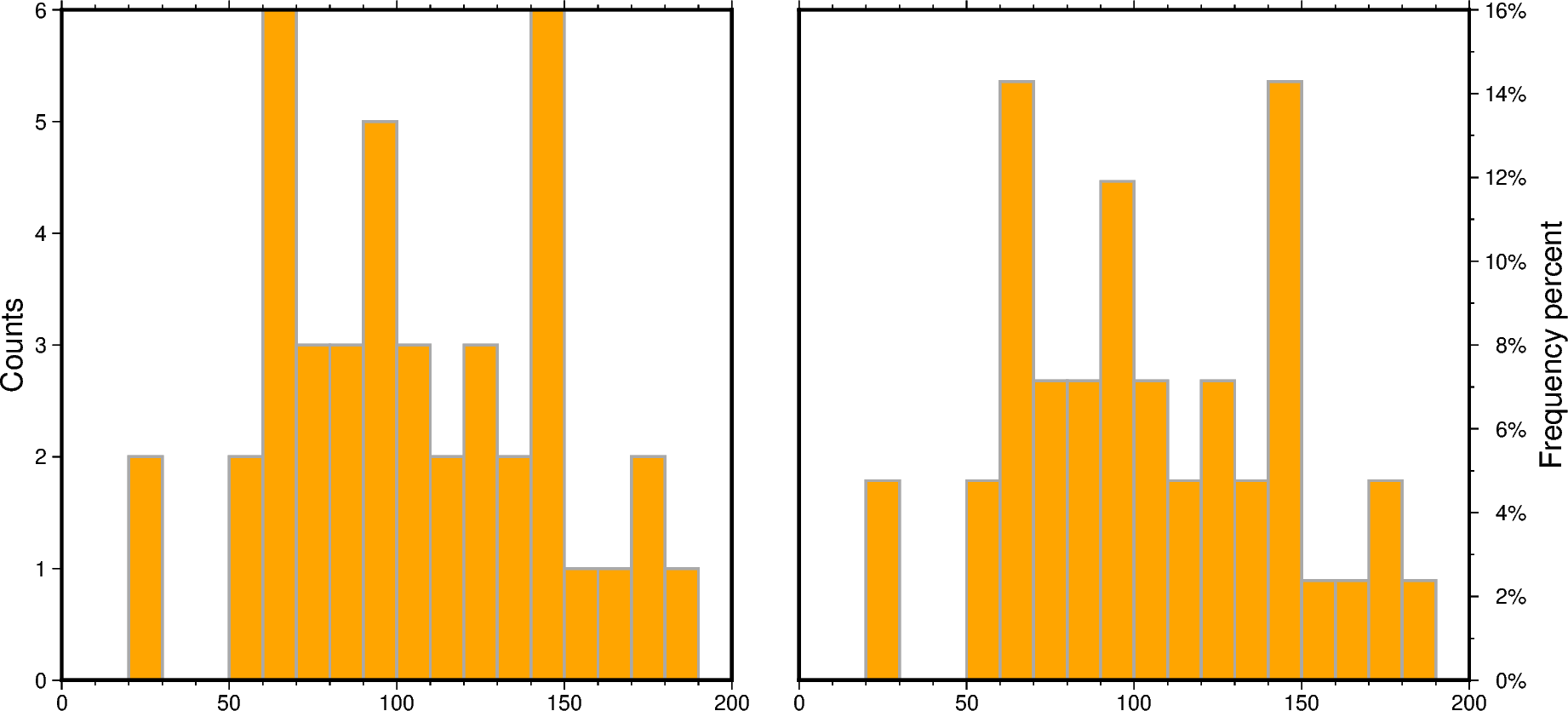
By default, a histogram showing the counts in each bin is created
(histtype="count"). To show the percentage of values in each bin, set the
histtype parameter to "percent". For further
options please have a look at the documentation of pygmt.Figure.histogram.
fig = pygmt.Figure()

# Create histogram for data02 showing counts
fig.histogram(
    region=[0, 200, 0, 0],
    projection="X10c",
    frame=Frame(
        axes="WSnr",
        xaxis=Axis(annot=True, tick=10),
        yaxis=Axis(annot=1, tick=1, label="Counts"),
    ),
    data=data02,
    series=10,
    fill="orange",
    pen="1p,darkgray,solid",
    # Choose counts via the "histtype" parameter
    histtype="count",
)

fig.shift_origin(xshift="w+1c")

# Create histogram for data02 showing frequency percent
fig.histogram(
    region=[0, 200, 0, 0],
    projection="X10c",
    # Add suffix % (+u)
    frame=Frame(
        axes="lSnE",
        xaxis=Axis(annot=True, tick=10),
        yaxis=Axis(annot=2, tick=1, unit="%", label="Frequency percent"),
    ),
    data=data02,
    series=10,
    fill="orange",
    pen="1p,darkgray,solid",
    # Choose percentages via the "histtype" parameter
    histtype="percent",
)

fig.show()
Cumulative values
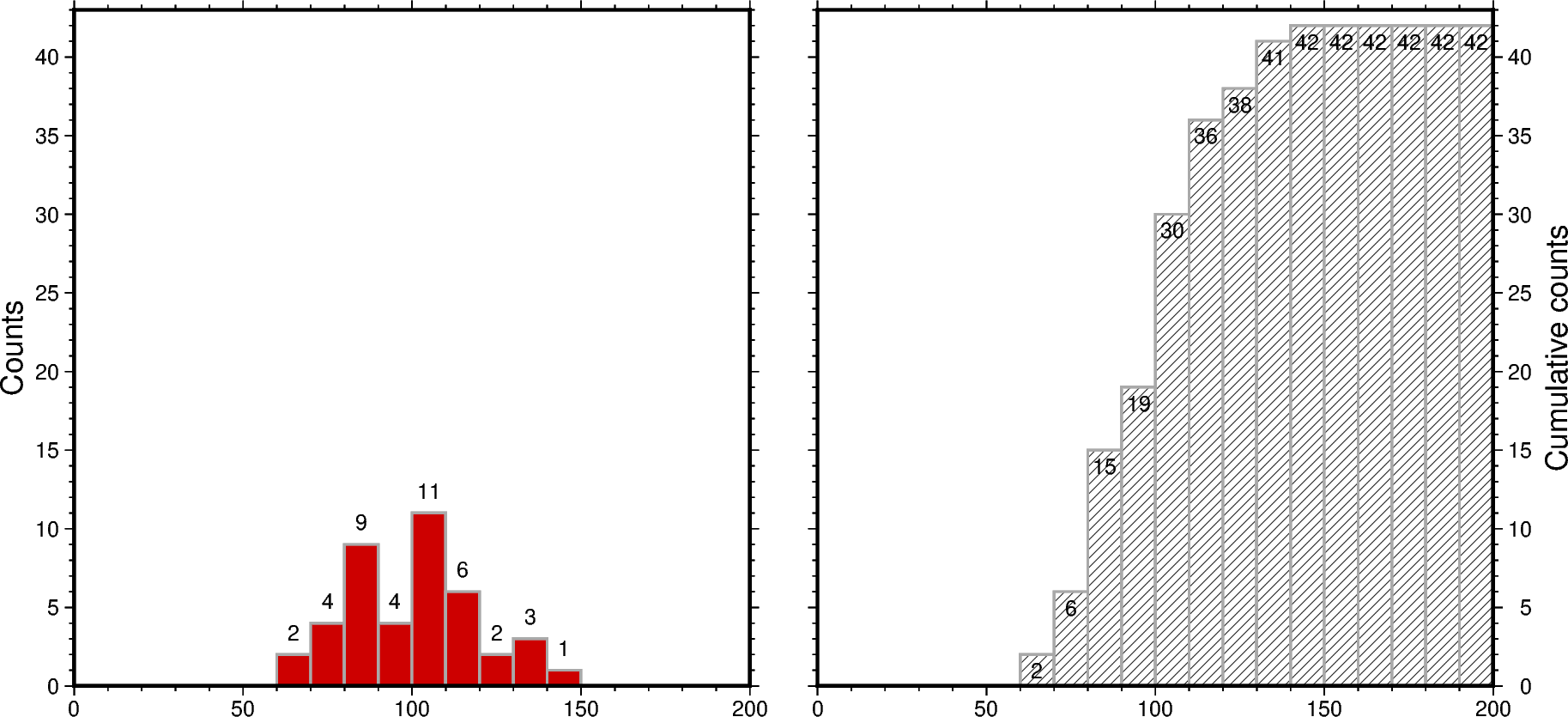
To create a histogram showing the cumulative values set cumulative=True. Here, the
bars of the cumulative histogram are filled with a pygmt.params.Pattern via
the fill parameter. Annotate each bar with the counts it represents using the
annot parameter.
fig = pygmt.Figure()

# Create histogram for data01 showing the counts per bin
fig.histogram(
    region=[0, 200, 0, len(data01) + 1],
    projection="X10c",
    frame=Frame(
        axes="WSne",
        xaxis=Axis(annot=True, tick=10),
        yaxis=Axis(annot=5, tick=1, label="Counts"),
    ),
    data=data01,
    series=10,
    fill="red3",
    pen="1p,darkgray,solid",
    histtype="count",
    annot=True,
)

fig.shift_origin(xshift="w+1c")

# Create histogram for data01 showing the cumulative counts
fig.histogram(
    region=[0, 200, 0, len(data01) + 1],
    projection="X10c",
    frame=Frame(
        axes="wSnE",
        xaxis=Axis(annot=True, tick=10),
        yaxis=Axis(annot=5, tick=1, label="Cumulative counts"),
    ),
    data=data01,
    series=10,
    # Fill bars with GMT pattern 8, with white background and black foreground.
    fill=Pattern(8, bgcolor="white", fgcolor="black"),
    pen="1p,darkgray,solid",
    histtype="count",
    cumulative=True,  # Show cumulative counts
    annot=True,
    annot_offset="-10p",  # Offset the annotations by 10 points in negative y-direction
)

fig.show()
Distribution curves
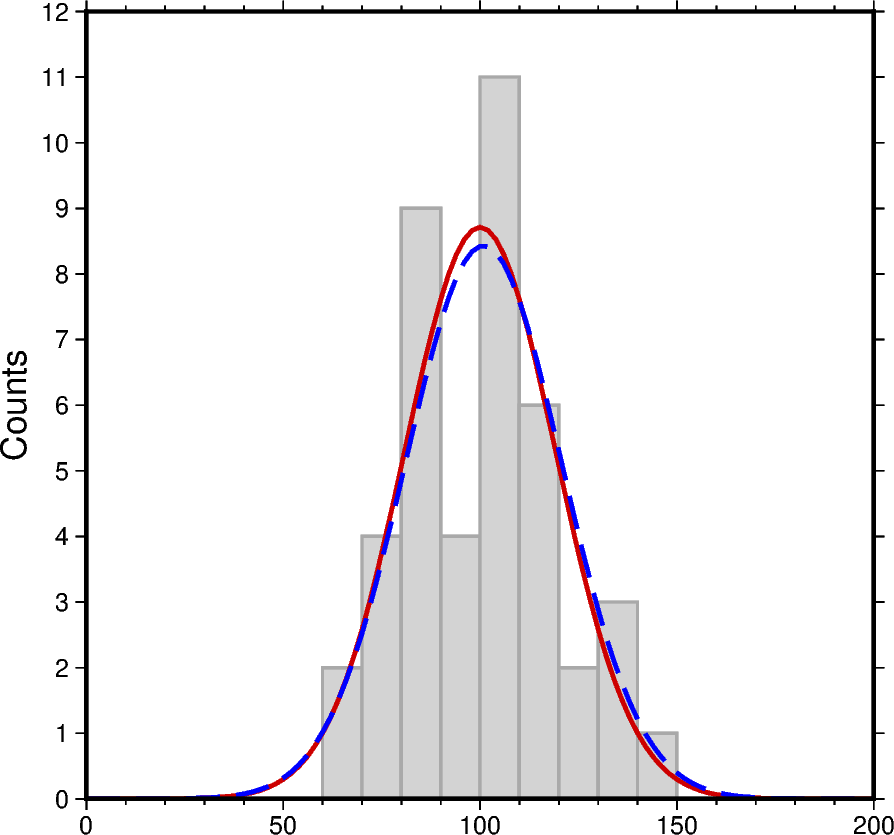
Use distribution to add an equivalent normal distribution curve calculated
from the data. Set it to "mean" to use the mean and standard deviation, or
"median" to use the median and a scale based on the median absolute deviation.
A third option, "lms", uses the least median of squares mode and scale.
These curves summarize the data; they do not imply that the data are normally
distributed.
Pass a list to compare several curves. distribution_pen controls their
appearance: a single pen applies to every curve, while a list of pens matches
the order of the modes in distribution. Below, the mean-based curve is solid
red, and the median-based curve is dashed blue. GMT scales the curves to the
histogram, so no separate probability density calculation is needed.
fig = pygmt.Figure()

fig.histogram(
    data=data01,
    series=10,
    region=[0, 200, 0, 12],
    projection="X10c",
    frame=Frame(
        axes="WSne",
        xaxis=Axis(annot=True, tick=10),
        yaxis=Axis(annot=1, label="Counts"),
    ),
    fill="lightgray",
    pen="1p,darkgray",
    distribution=["mean", "median"],
    distribution_pen=["1.5p,red3", "1.5p,blue,dashed"],
)

fig.show()
Overlaid bars
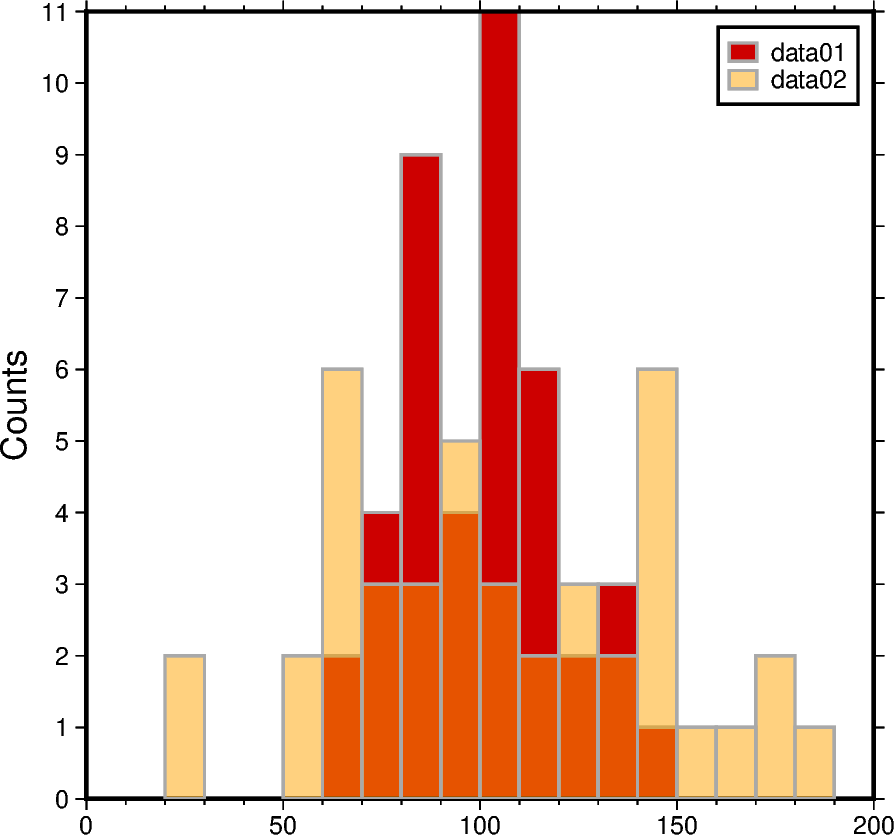
Overlaid or overlapping bars can be achieved by plotting two or several histograms,
each for one data set, on top of each other. The legend entry can be specified via
the label parameter.
Limitations of histograms with overlaid bars are:
Mixing of colors or/and patterns
Visually more colors or/and patterns than data sets
Visually a “third histogram” (or more in case of more than two data sets)
fig = pygmt.Figure()

# Create histogram for data01
fig.histogram(
    region=[0, 200, 0, 0],
    projection="X10c",
    frame=Frame(
        axes="WSne",
        xaxis=Axis(annot=True, tick=10),
        yaxis=Axis(annot=1, tick=1, label="Counts"),
    ),
    data=data01,
    series=10,
    fill="red3",
    pen="1p,darkgray,solid",
    histtype="count",
    # Set legend entry
    label="data01",
)

# Create histogram for data02
# It is plotted on top of the histogram for data01
fig.histogram(
    data=data02,
    series=10,
    # Fill bars with color "orange", use a transparency of 50% ("@50")
    fill="orange@50",
    pen="1p,darkgray,solid",
    histtype="count",
    label="data02",
)

# Add legend
fig.legend()

fig.show()
Stacked bars
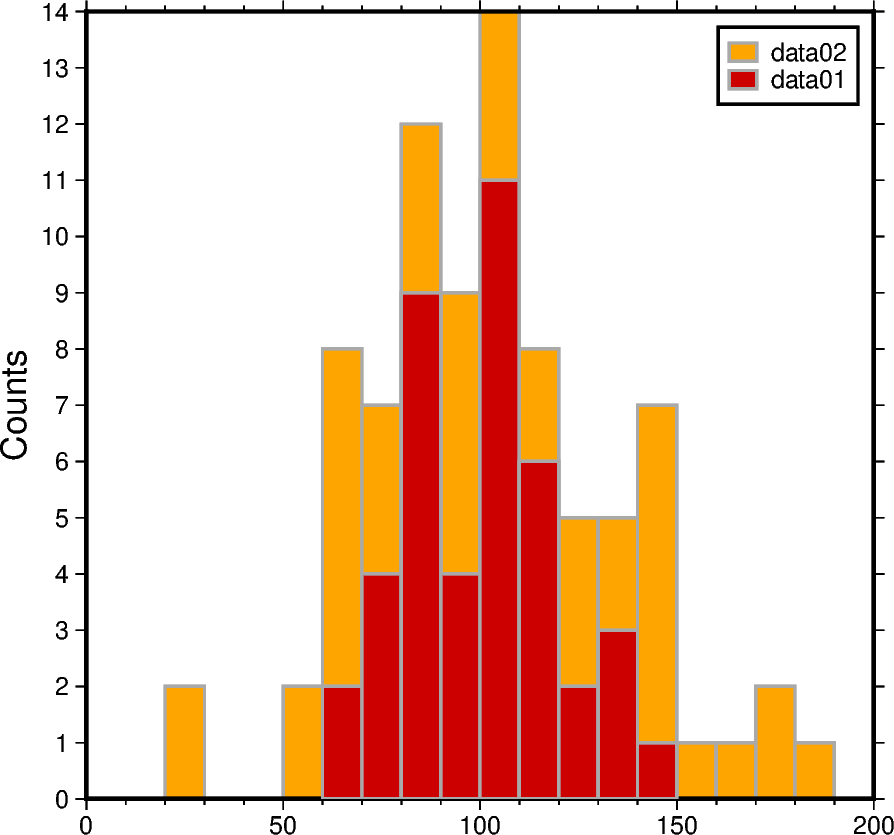
Histograms with stacked bars are not directly supported by PyGMT. Thus, before plotting, combined data sets have to be created from the single data sets. Then, stacked bars can be achieved similar to overlaid bars via plotting two or several histograms on top of each other.
Limitations of histograms with stacked bars are:
No common baseline
Partly not directly clear whether overlaid or stacked bars
# Combine the two data sets to one data set
data_merge = np.concatenate((data01, data02), axis=None)

fig = pygmt.Figure()

# Create histogram for data02 by using the combined data set
fig.histogram(
    region=[0, 200, 0, 0],
    projection="X10c",
    frame=Frame(
        axes="WSne",
        xaxis=Axis(annot=True, tick=10),
        yaxis=Axis(annot=1, tick=1, label="Counts"),
    ),
    data=data_merge,
    series=10,
    fill="orange",
    pen="1p,darkgray,solid",
    histtype="count",
    # The combined data set appears in the final histogram visually as data set data02
    label="data02",
)

# Create histogram for data01
# It is plotted on top of the histogram for data02
fig.histogram(
    data=data01,
    series=10,
    fill="red3",
    pen="1p,darkgray,solid",
    histtype="count",
    label="data01",
)

# Add legend
fig.legend()

fig.show()
Grouped bars
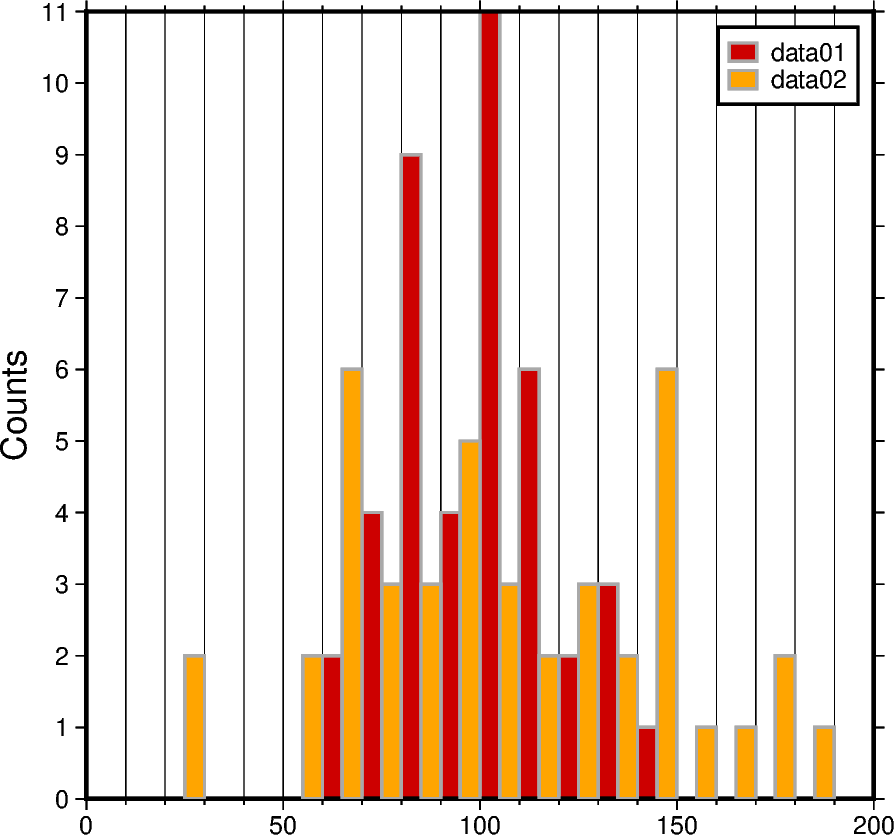
By setting the bar_width parameter in respect to the values passed to the
series parameter histograms with grouped bars can be created.
Limitations of histograms with grouped bars are:
Careful setting width and position of the bars in respect to the bin width
Difficult to see the variations of the single data sets
# Width used for binning the data
binwidth = 10

fig = pygmt.Figure()

# Create histogram for data01
fig.histogram(
    region=[0, 200, 0, 0],
    projection="X10c",
    frame=Frame(
        axes="WSne",
        xaxis=Axis(annot=True, tick=10, grid=10),
        yaxis=Axis(annot=1, tick=1, label="Counts"),
    ),
    data=data01,
    series=binwidth,
    fill="red3",
    pen="1p,darkgray,solid",
    histtype="count",
    # Calculate the bar width in respect to the bin width, here for two data sets half
    # of the bin width
    bar_width=binwidth / 2,
    # Offset the bars to align each bar with the left limit of the corresponding bin
    bar_offset=-binwidth / 4,
    label="data01",
)

# Create histogram for data02
fig.histogram(
    data=data02,
    series=binwidth,
    fill="orange",
    pen="1p,darkgray,solid",
    histtype="count",
    bar_width=binwidth / 2,
    bar_offset=binwidth / 4,
    label="data02",
)

# Add legend
fig.legend()

fig.show()
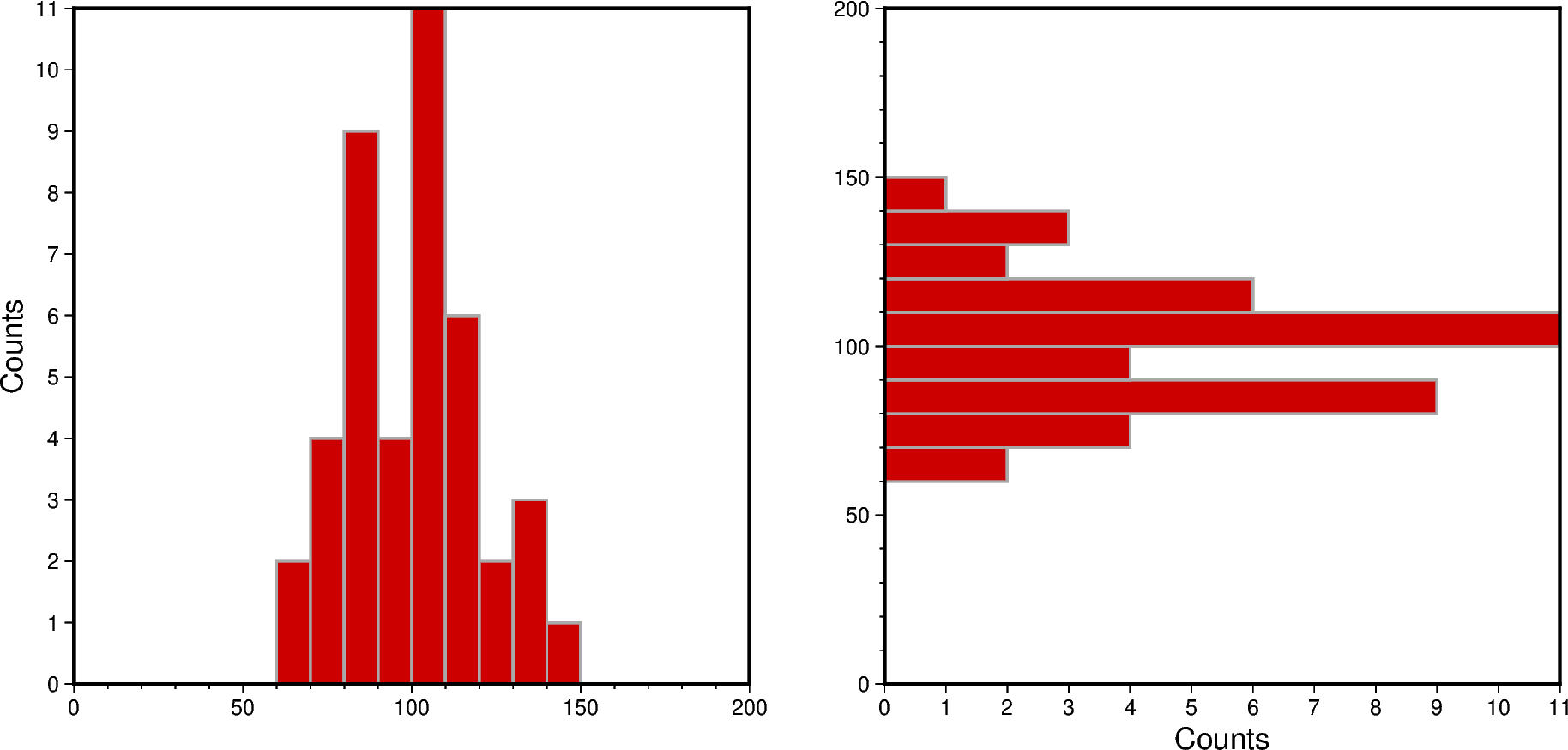
Vertical and horizontal bars
To define the width of the bins, the series parameter has to be specified. The
bars can be filled via the fill parameter with either a color or a pattern.
Use the pen parameter to adjust width, color, and style
of the outlines. By default, a histogram with vertical bars is created. Horizontal
bars can be achieved via horizontal=True.
fig = pygmt.Figure()

# Create histogram for data01 with vertical bars
fig.histogram(
    # Define the plot range as a list of xmin, xmax, ymin, ymax
    # Let ymin and ymax determined automatically by setting both to the same value
    region=[0, 200, 0, 0],
    projection="X10c",  # Cartesian projection with a width of 10 centimeters
    # Add frame, annotations ("a"), ticks ("f"), and y-axis label ("+l") "Counts"; the
    # numbers give the steps of annotations and ticks
    frame=Frame(
        axes="WStr",
        xaxis=Axis(annot=True, tick=10),
        yaxis=Axis(annot=1, tick=1, label="Counts"),
    ),
    data=data01,
    # Set the bin width via the "series" parameter
    series=10,
    # Fill the bars with color "red3"
    fill="red3",
    # Draw a 1-point thick, solid outline in "darkgray" around the bars
    pen="1p,darkgray,solid",
    # Choose counts via the "histtype" parameter
    histtype="count",
)

# Shift plot origin by the previous plot's width ("w") plus 2 centimeters to the right
fig.shift_origin(xshift="w+2c")

# Create histogram for data01 with horizontal bars
fig.histogram(
    region=[0, 200, 0, 0],
    projection="X10c",
    frame=Frame(
        axes="WStr",
        xaxis=Axis(annot=True, tick=10),
        yaxis=Axis(annot=1, tick=1, label="Counts"),
    ),
    data=data01,
    series=10,
    fill="red3",
    pen="1p,darkgray,solid",
    histtype="count",
    # Use horizontal bars. Note that the x- and y-axes are flipped, with the x-axis
    # plotted vertically and the y-axis plotted horizontally.
    horizontal=True,
)

fig.show()
Total running time of the script: (0 minutes 1.478 seconds)